![513x513px Logo (1)-1.png]](https://5965487.fs1.hubspotusercontent-na1.net/hub/5965487/hubfs/513x513px%20Logo%20(1)-1.png?height=40&name=513x513px%20Logo%20(1)-1.png)
Why should I use the Associated Fee Schedule feature?
Our Associated Fee Schedule feature provides a better workflow when it comes to billing patients. When creating an appointment for a service that has an Associated Fee Schedule, the balance of that appointment will be created; as the CPT codes will be automatically attached.
This is especially useful for when you know what you would charge for certain services almost each time. If there's a moment where the total balance of that service would be different for a patient, you could still adjust the balance as needed within that specific appointment.
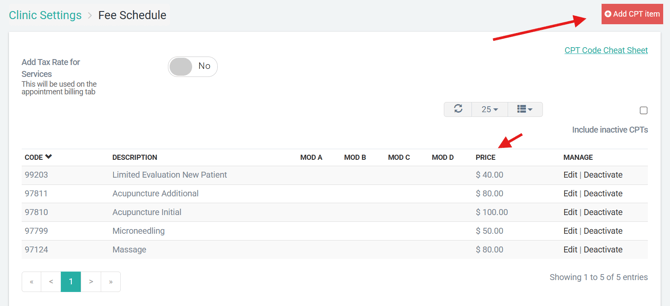
Step 1: Add CPT Codes within Clinic Settings > Fee Schedule
Add your CPT codes and prices as needed. CPT codes are needed to create the patient balances that you collect for. These prices can always be changed later, or manually adjusted when billing for the actual appointment:
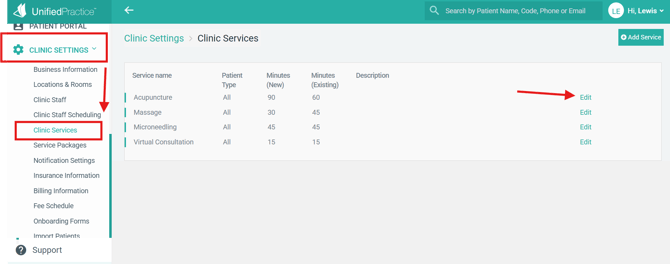
Step 2: Navigate to Clinic Settings > Clinic Services
Here would be the list of all the services that your clinic offers. You can add as many services as you'd like. On this page, click "Edit" next to the service you'd like to add associated CPT codes to:
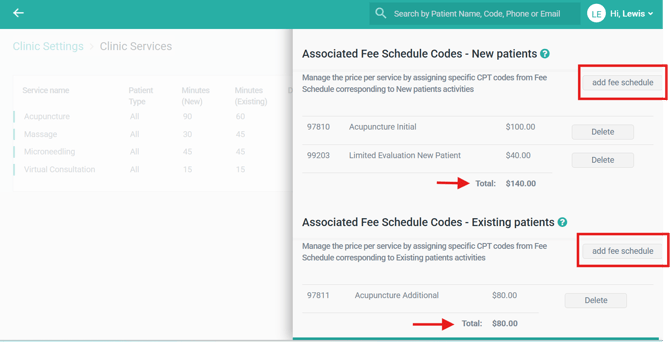
Step 3: Add the Associated Fee Schedule Codes
Scroll to the bottom of the edit page to add your codes. If you offer the service to both New & Existing patients, then you can add codes for each. Multiple CPT codes can be added:
Step 4: Create an Appointment
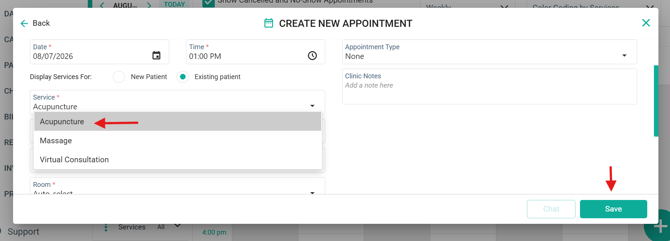
Now that you added an Associated Fee Schedule to your services, you can create an appointment. Once that appointment has been created, the balance will automatically be generated.
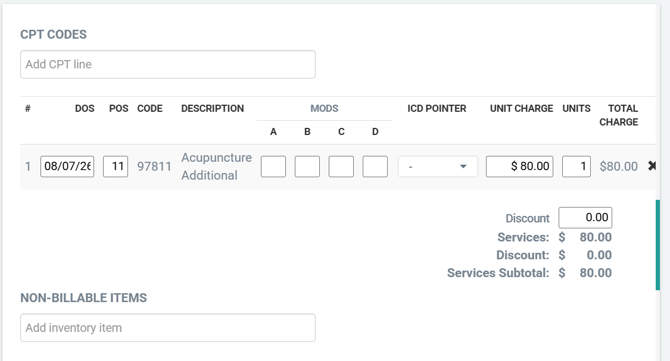
In the example below, the Acupuncture service had an Associated Fee Schedule balance of $80 for existing patients:
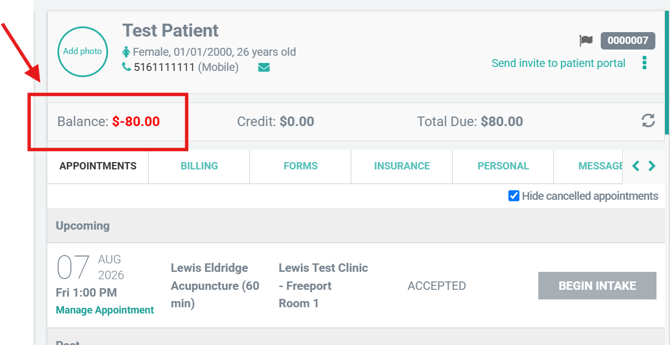
Once the appointment was scheduled, the Balance Due was generated on their Patient File:
The CPT code was automatically added within Appointments > Billing Info for that specific appointment. You would be able to adjust your CPT codes from here if needed: