![513x513px Logo (1)-1.png]](https://support.unifiedpractice.com/hs-fs/hubfs/513x513px%20Logo%20(1)-1.png?height=40&name=513x513px%20Logo%20(1)-1.png)
How to Print or Download a Claim
- Start by navigating to the Patient File.
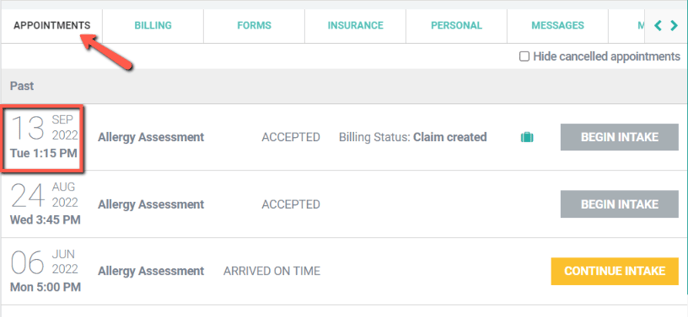
- Then in the Appointments tab click on the date of service for the claim to enter the Billing Info page.
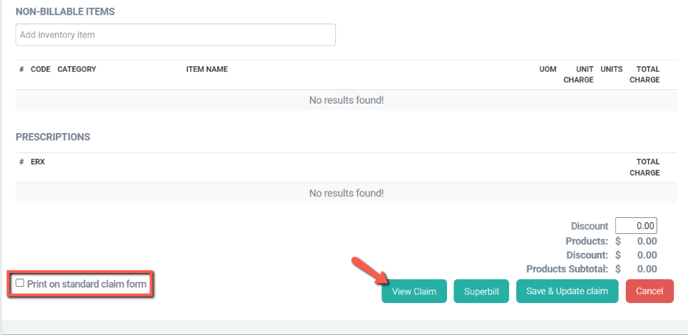
- Next, scroll down to the bottom of the page and click View Claim.
- Check or uncheck the box Print on standard claim form. This will control how the claim is view / printed.
- The claim preview will open in a new window.
- The icons in the upper right-hand corner allow you to Download or Print the claim.
- Click the Download
 icon to download or click the Printer
  icon to print the claim. (Google Chrome shown below)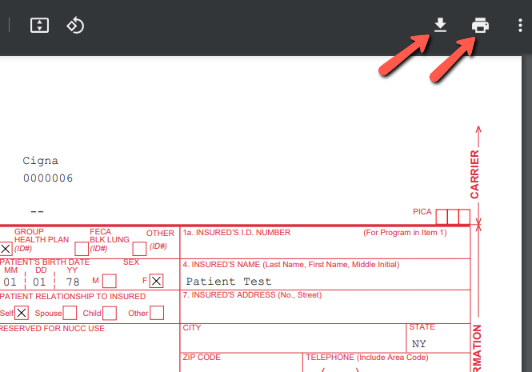
- Lastly, if you are downloading the claim, choose a folder, name the file and click Save.
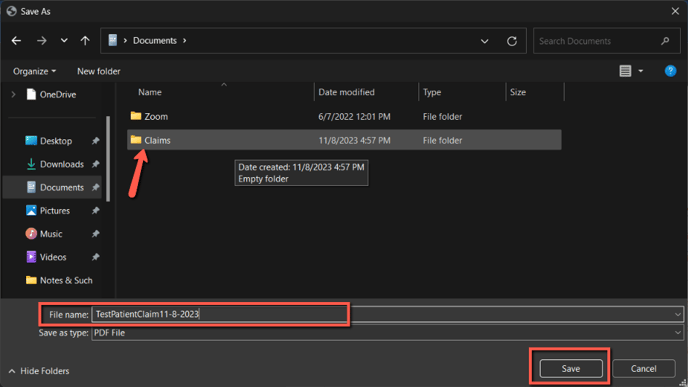
Please note: The download/print window can vary by the internet browser you are using.
Need to download multiple claims?
Please submit a support ticket or email support with the Patient ID number and date range needed.