![513x513px Logo (1)-1.png]](https://support.unifiedpractice.com/hs-fs/hubfs/513x513px%20Logo%20(1)-1.png?height=40&name=513x513px%20Logo%20(1)-1.png)
The Product Sale Statement is an itemized receipt for your product sales and can only be printed in the Product Sale section.
Please see the following instructions:
- Go to the Product Sale section
- Click on the shopping icon, which is the Product Sale section.

Sale History
- Next click on the Sale History section
- The Sale History section is where you can print itemized receipts
- You can also search for all product sales by Practitioner (by clicking Users), by Customers, or by Walk-in from the drop down menu.

Print the Receipt
- Once you have found the transaction, click on the 3 dots located to the right, and then Print Statement.
As shown here:

A pop-up should now appear with the product sale statement!
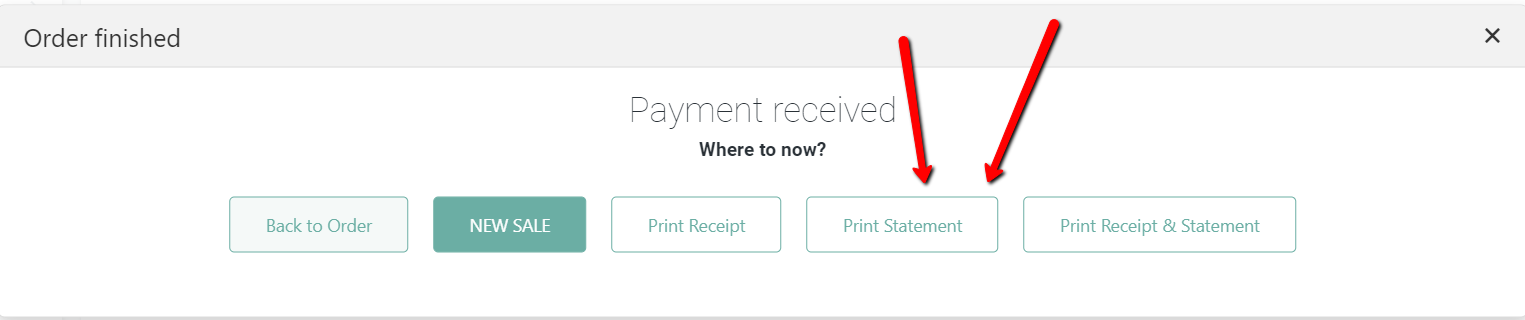
You can also print out product sale statements when completing a product sale. Just be sure to click the Print Product Statement button, as shown here:
Please Note:
On the Print Preview screen, you can choose to Print or Download the statement.
If you have any additional questions, please reach out to us at support@unifiedpractice.com