![513x513px Logo (1)-1.png]](https://support.unifiedpractice.com/hs-fs/hubfs/513x513px%20Logo%20(1)-1.png?height=40&name=513x513px%20Logo%20(1)-1.png)
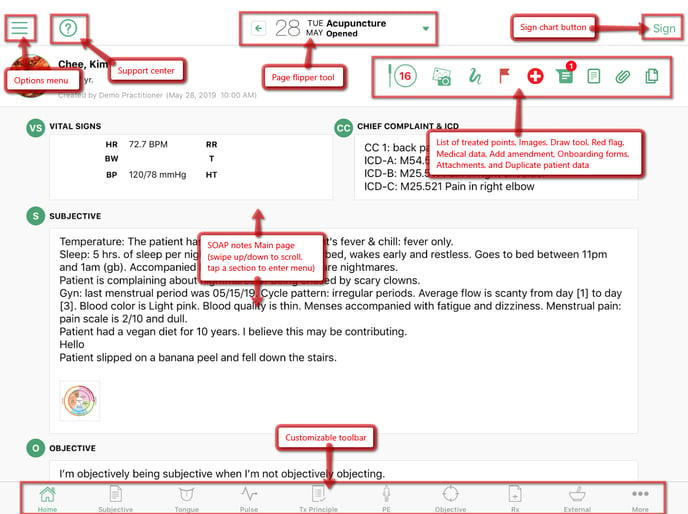
Main SOAP Interface:
- On the main page of the SOAP notes, swipe vertically to scroll up or down.
- Tap on the Home button in the upper-left corner of the toolbar to return to the main interface of the SOAP note.
Options and Support:
- Located in the upper left-hand corner. The Options menu allows you to easily navigate to other parts of the iPad application.
- The Support Center allows you to contact the Unified Practice support team for assistance.
Chart Page Flipper:
- Located Along the top of the application in the center of the page. Lets you quickly switch between charts for the selected patient. Learn more about navigating between appointments by clicking here.
Sign Button:
- Located in the upper-right corner. Allows you to sign and close the chart. When you tap this, a confirmation menu will display asking if you're sure that you want to sign this intake.
Additional Icons:
- Located in the upper right corner of the chart. Tapping on any of these icons will open the associated menu. Tap Back to return to the SOAP note.
- Icons from left to right: List of Charted Points, Images, Draw tool, Red Flag, Medical Data, Add amendment, Onboarding Forms, Attachments, and Duplicate Patient Data.
Customize Tool Bar:
- Located at the bottom of the SOAP note. Navigate through each section of the SOAP notes by tapping on the icons. Tapping More > Customize toolbar allows you to customize the icons which appear in the toolbar.