![513x513px Logo (1)-1.png]](https://support.unifiedpractice.com/hs-fs/hubfs/513x513px%20Logo%20(1)-1.png?height=40&name=513x513px%20Logo%20(1)-1.png)
To resubmit a claim, follow these steps.
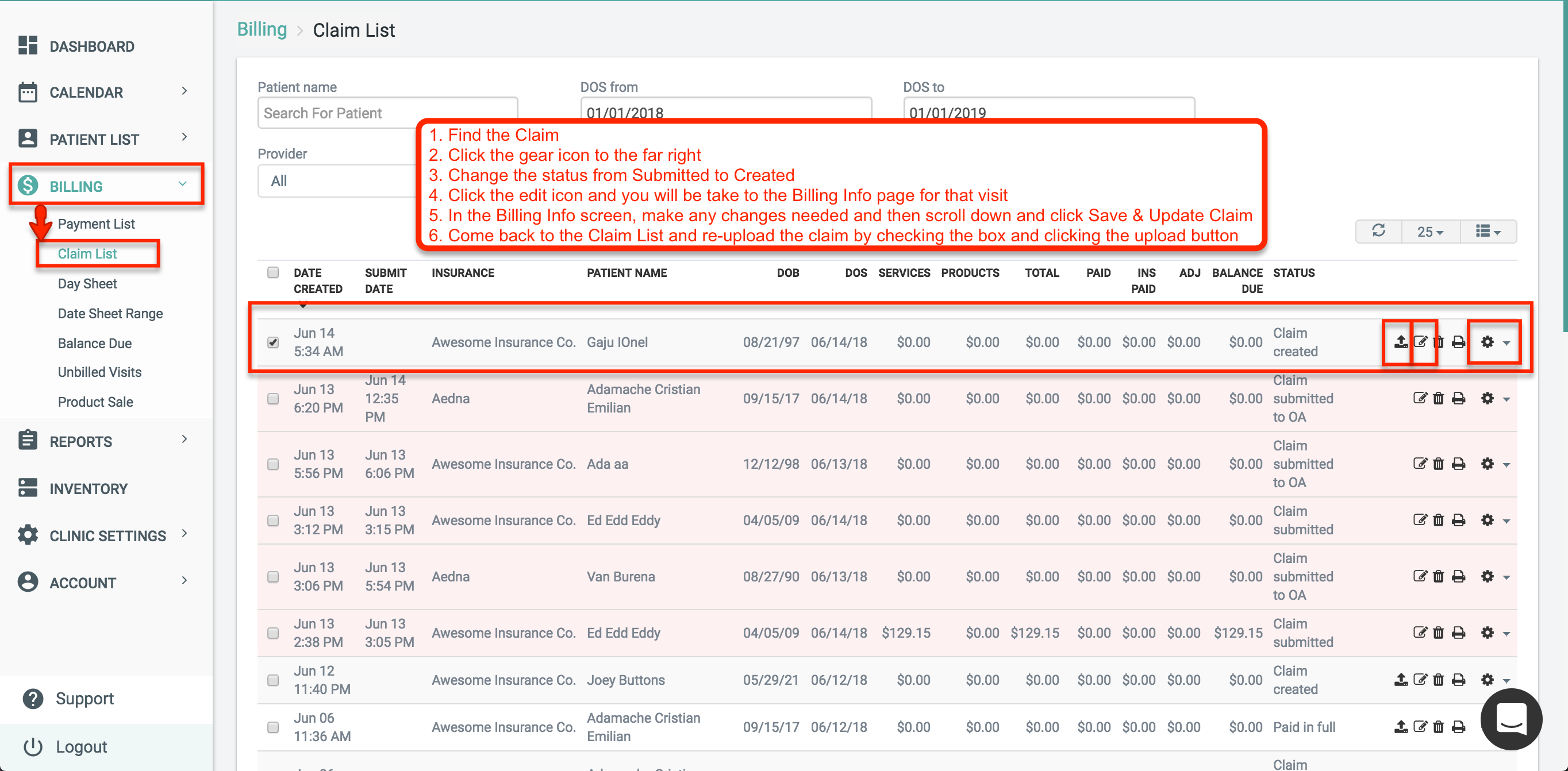
Step 1: Go to Billing, then Claim List.
Step 2: Find the claim.
Step 3: Click the gear icon.
Step 4: Change the status from "Submitted" to "Created."
Step 5: Click the "Edit" icon (pen & pad icon) and edit the billing.
Step 6: Make the desired changes in the Billing screen (add/remove/edit) then click "Save and Update Claim" when you're done.
Step 7: Come back to the Claim List, select the claim, and click the upload button. The updated claim will now be submitted to Office Ally.
(See image below for visual reference.)