![513x513px Logo (1)-1.png]](https://5965487.fs1.hubspotusercontent-na1.net/hub/5965487/hubfs/513x513px%20Logo%20(1)-1.png?height=40&name=513x513px%20Logo%20(1)-1.png)
PLEASE NOTE: For this feature to be effective, you must have Associated Fee Schedule Codes set up for the service you are charging for. This will allow the balance due to automatically populate for the appointment.
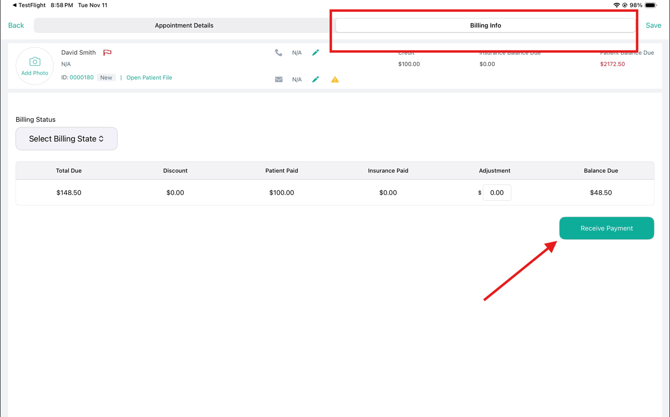
Step 1: When on the appointment, tap on the "Billing Info" tab, then "Receive Payment"
Step 2: Check and enter necessary details
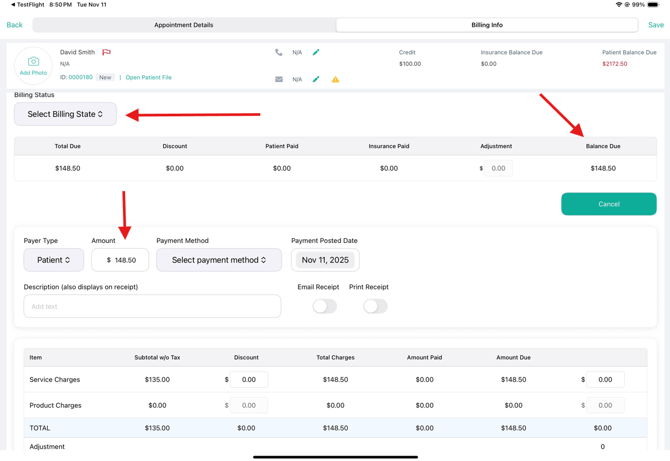
From here, you may select a Billing Status, check the Balance Due, make an Adjustment, and add an amount to collect from the patient.
At this time, the Payer Type must be "Patient"
Step 3: Select the payment method
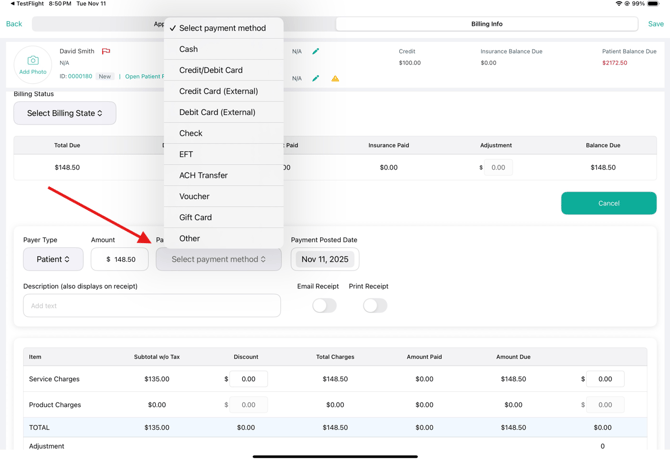
If you are using UnifiedPay, then you can select Credit/Debit Card as your payment method. Then, you must fill out the necessary information and send the payment to the terminal to collect the payment:
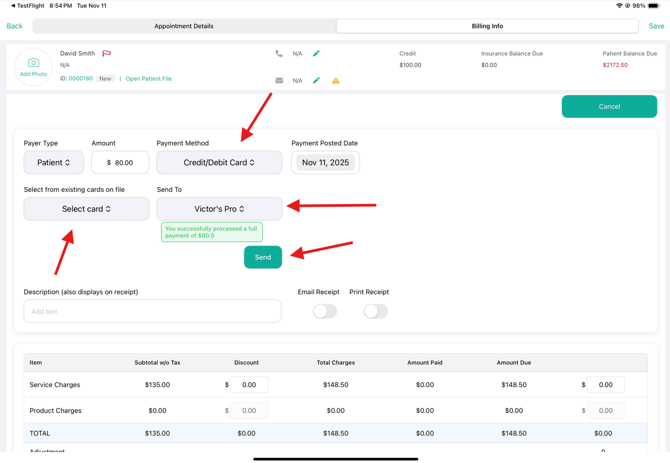
Step 4: Process the payment
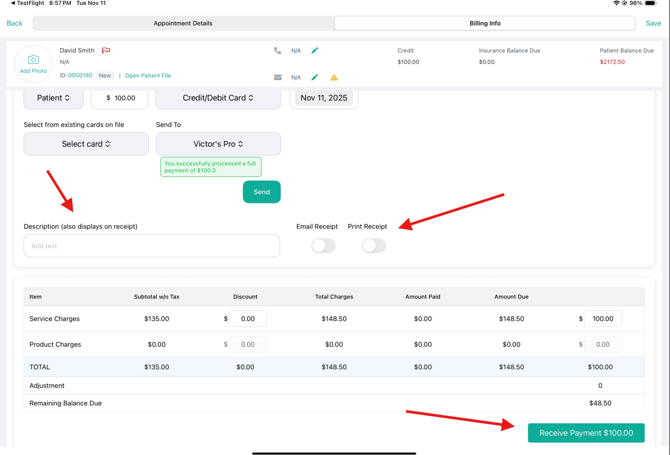
Add a description for the payment (optional), and toggle the receipt options as needed. Once clicking "Receive Payment", the payment will officially be logged for that appointment.
After a credit card payment is taken, the funds go into the patient's credit by default. From here, you will need to click "Receive Payment $X" to allocate the payment towards the appointment.